
Background
This knowledge base will walk you through the steps on how to update pricing for a vendor within the EDI transfer system.
Allowing you to update pricing to match current quotes and supply agreements.
Before you begin
- Ensure you have access to Scheduler. If you don't see Scheduler in your available Elda (Chrome) shortcuts, you may need to request access to it. Please see our article on how to Request access to an Elda Application.
- You have the right permissions to perform the below steps.
Steps to follow
1. Open scheduler from your Chrome folder or Citrix Workspace
2. Select a customers account and job number
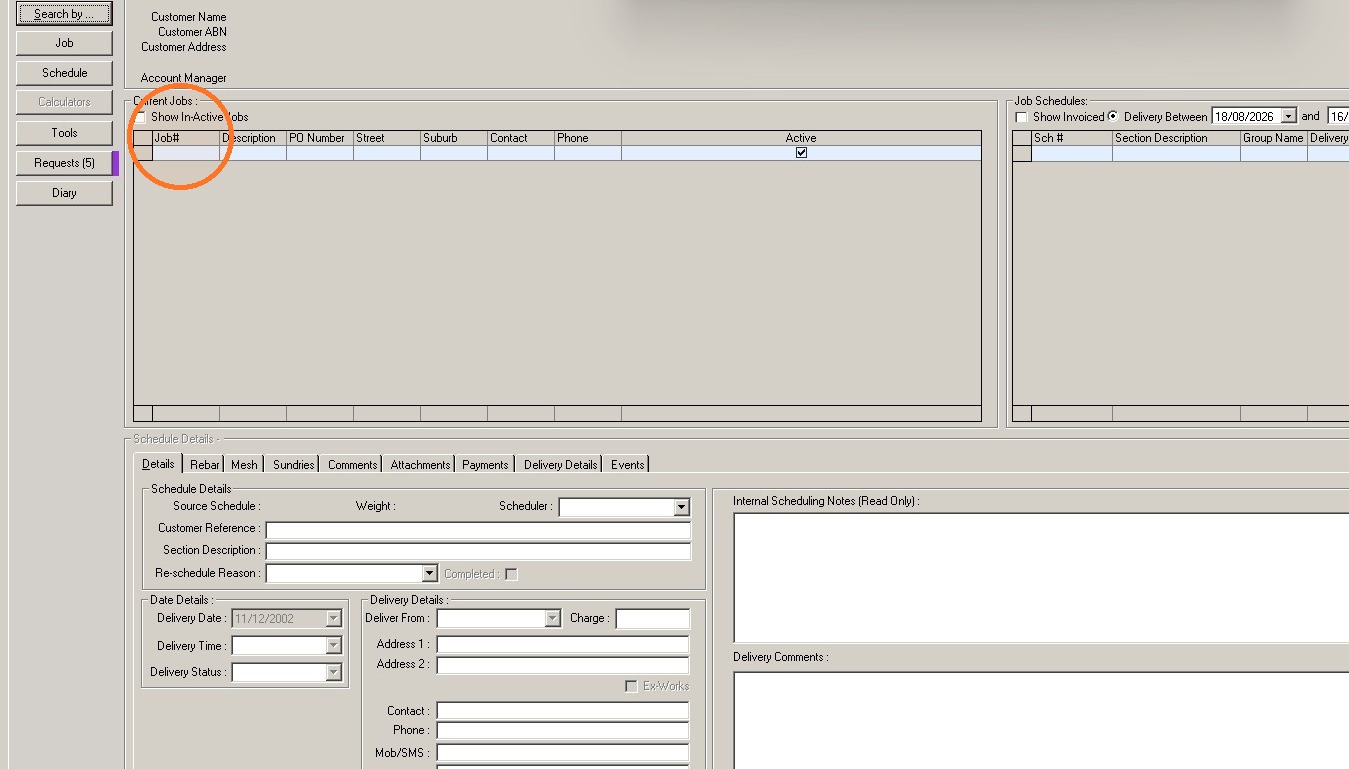
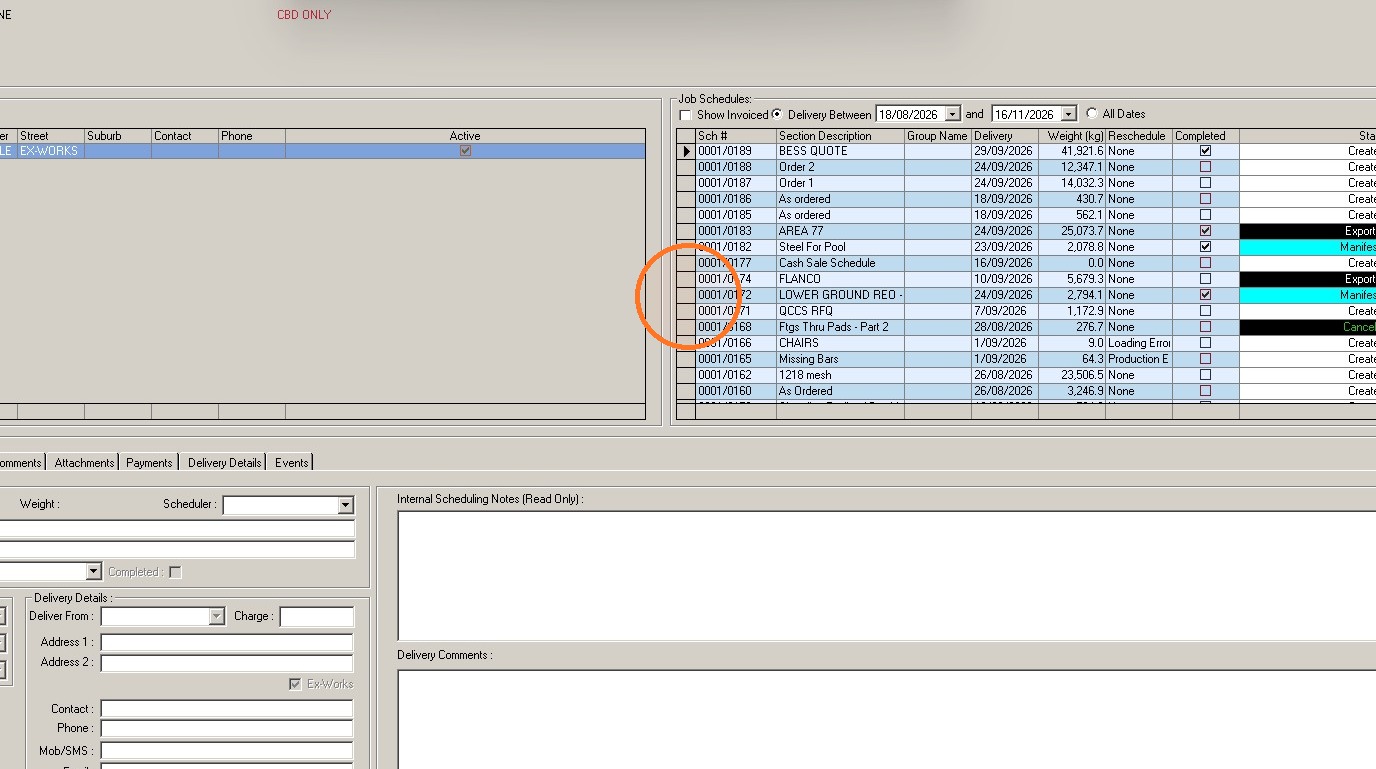
3. Double click and chose your schedule that has a status of Tags Assigned or Manifested
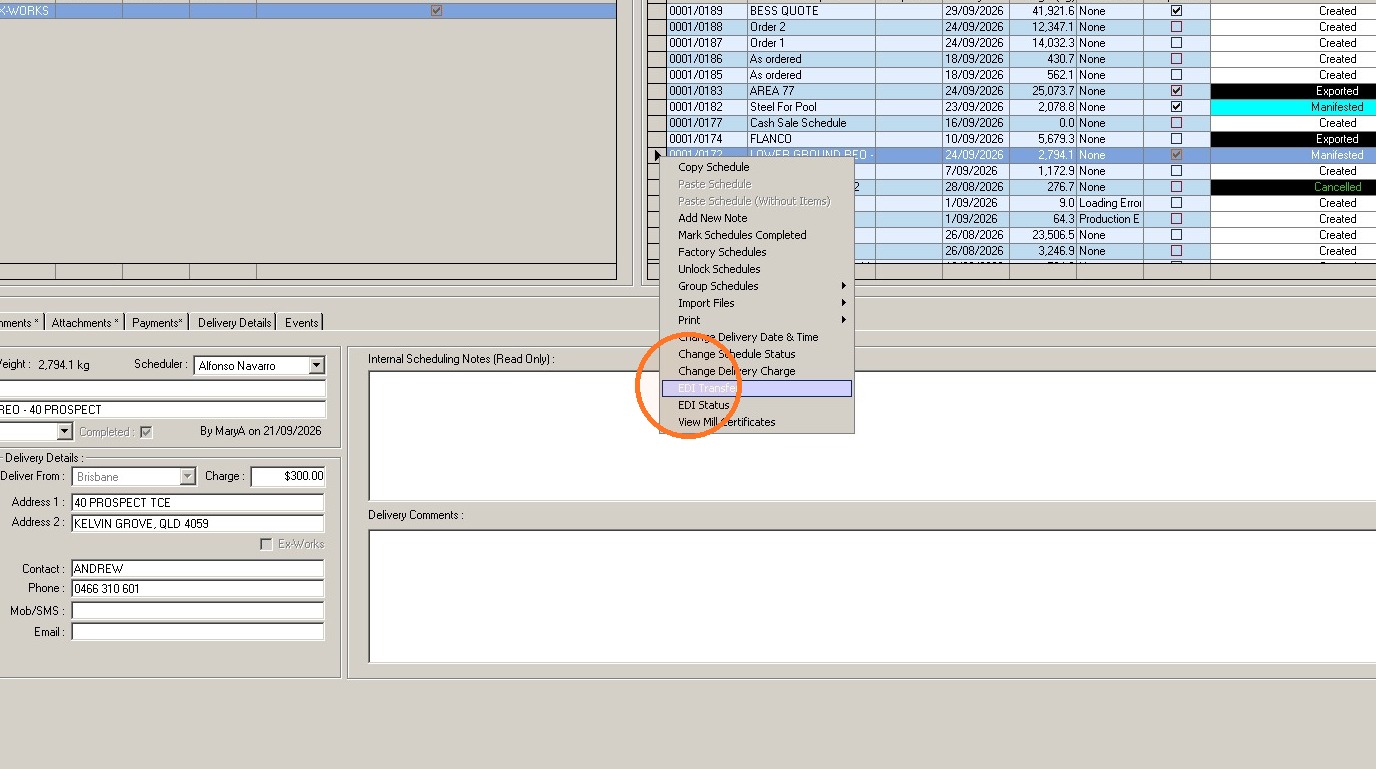
4. Right click and choose EDI transfer
5. Choose the Vendor whose pricing you are updating.
Note: If the schedule doesn't include a product the vendor normally supplies they will not appear in this list.
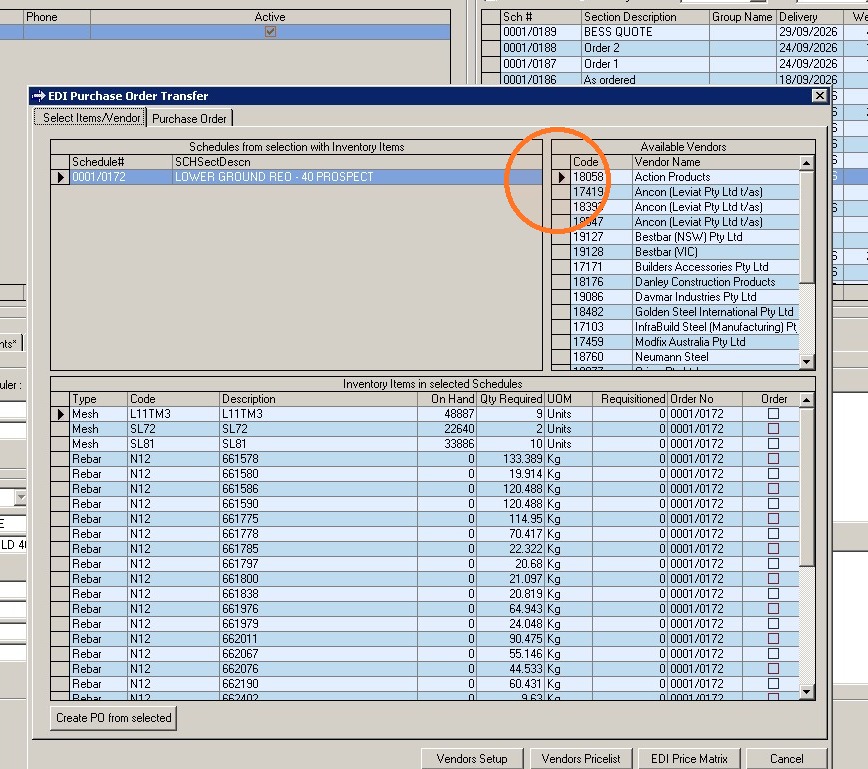
6. Click Vendor Pricelist.
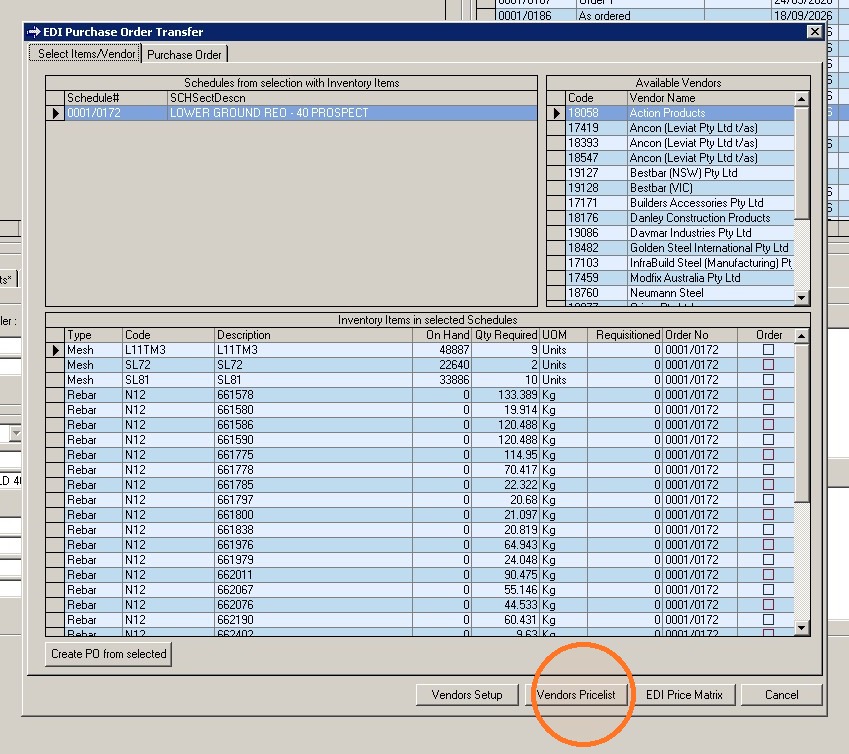
7. Select the product line item for which pricing you wish to update
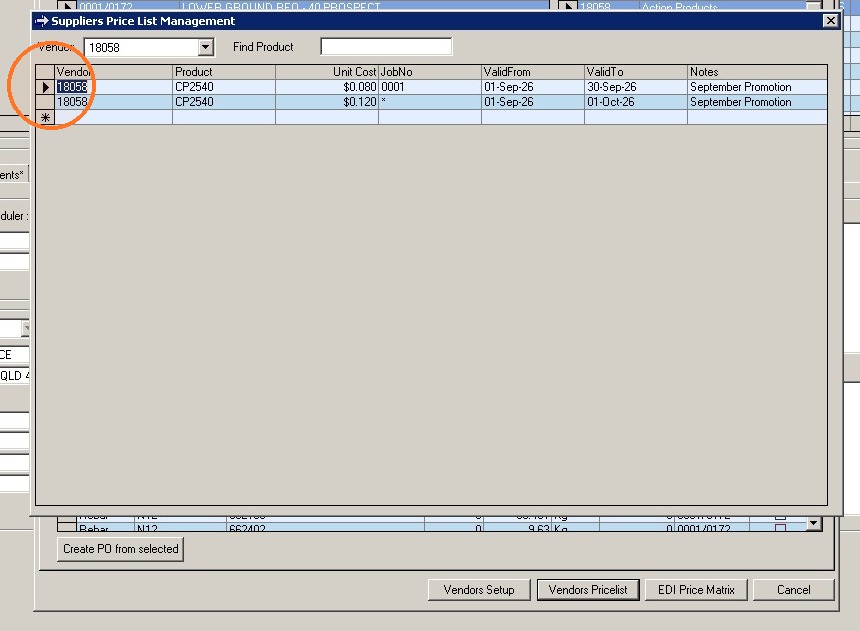
8. Update the unit cost
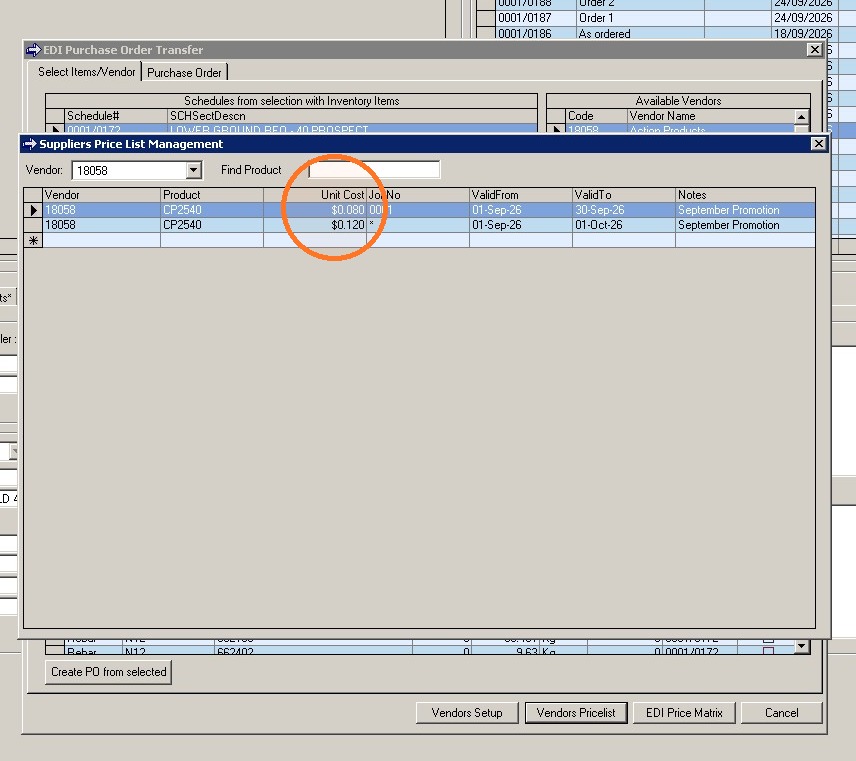
9. If the pricing is only applicable for a particular project or job number you can nominate the job number. If the pricing is to be updated for all job numbers update this column with an asterix (*).
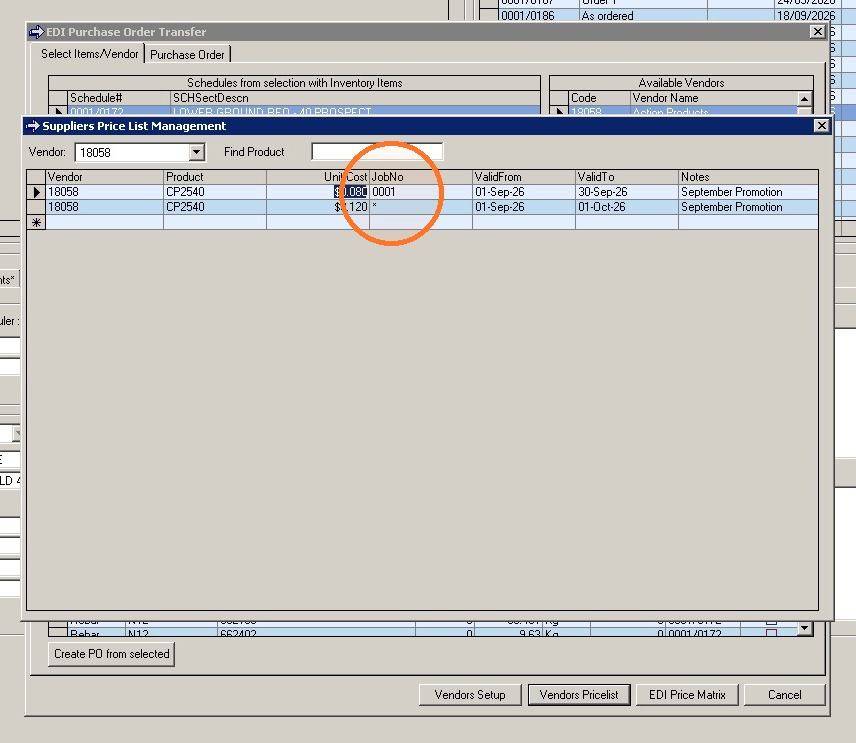
10. You can nominate a date range for which the pricing is valid
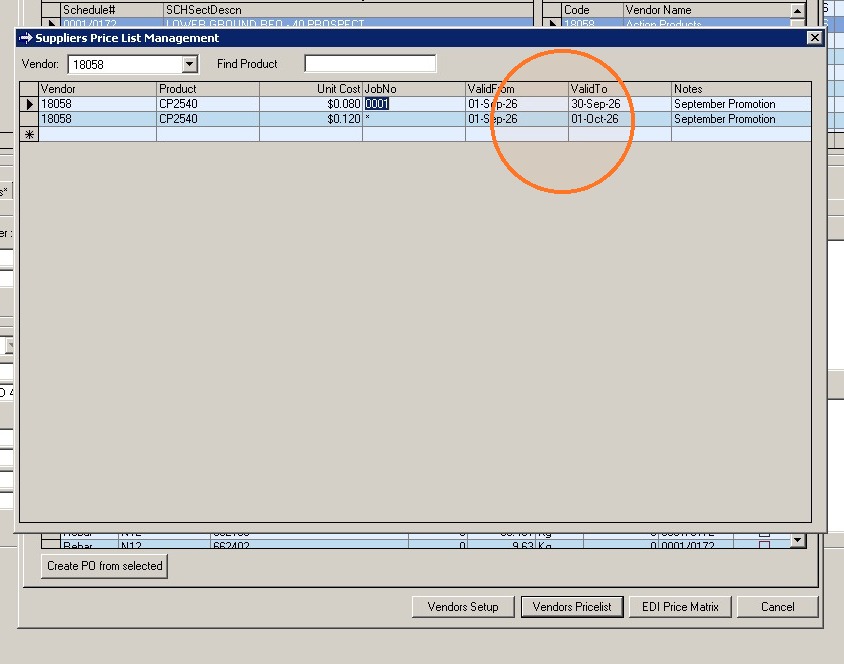
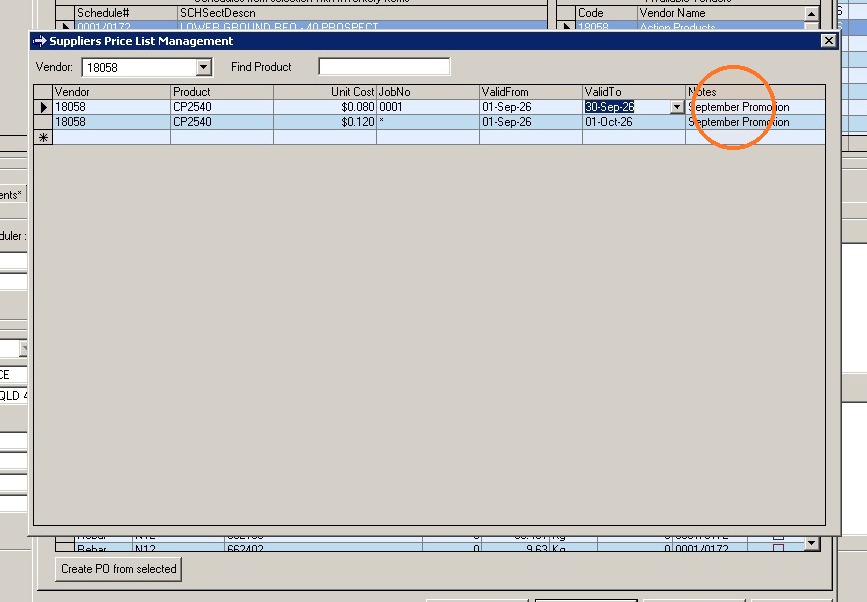
11. Add in any notes that may be applicable to the reasoning of the change in pricing.
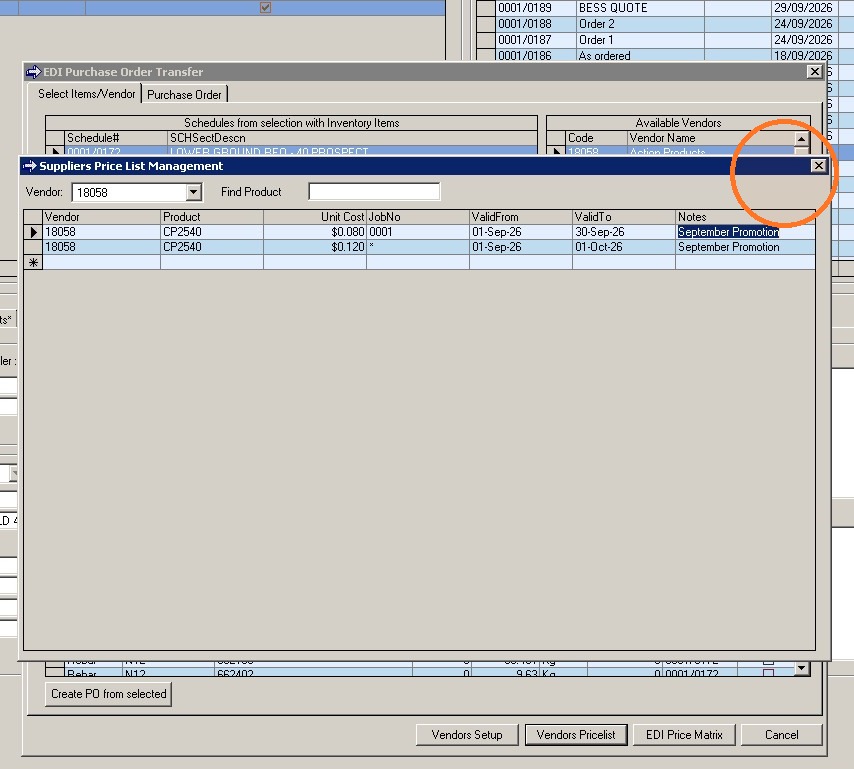
12. Click the cross to close the window. Pricing is now updated for all new EDI purchase orders to be raised.
Comments (0 comments)