
Background
The Estimate Forecast lets you review job estimates over a date range, spread their value across the months you expect the work to happen, and see how that planned work sits against factory capacity in the planning charts. This article walks you through opening the forecast, filtering estimates, planning estimate values, reading the charts and assigning work days.
Before you begin
- Ensure you have access to Estimates. If you don't see Estimates in your available Elda (Chrome) shortcuts, you may need to request access to it. Please see our article on how to Request access to an Elda Application.
- You have the right permissions to perform the below steps.
Steps to Follow
-
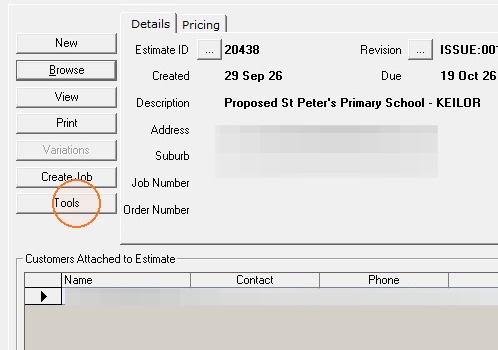
From the estimates home screen on the left hand side click the tools button.
-
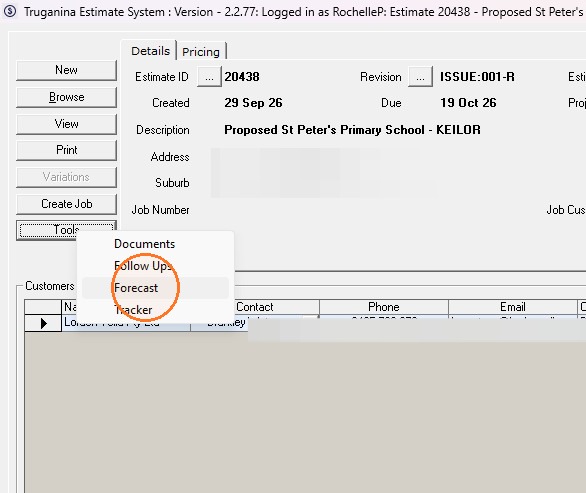
Choose the "Forecast" option and second window will open.
-
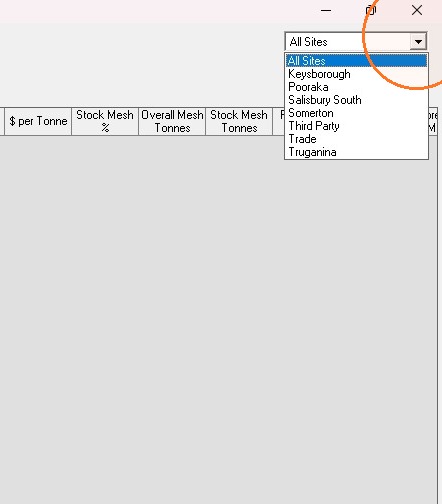
Nominate the site in which you want to search your estimate in.
-
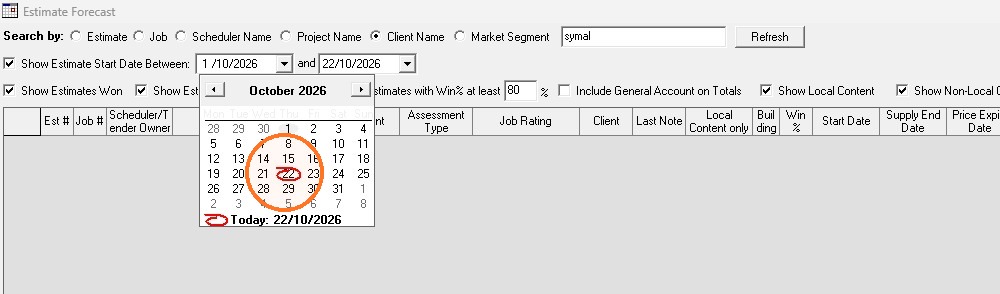
Across the top you will then find the different ways you can set your search parameters to find the estimate that you are looking for.
* Estimate number, job number, Scheduler name, Project or Client name or market segment.
* To narrow the search further you can select multiple fields along the third line of the parameters.
-
Nominate the time frame that the project is due to start. If you are unsure of this parameter ensure the check box on the left hand side is unticked.
- Click Refresh to apply the filters. The estimate list will update to match your selections.
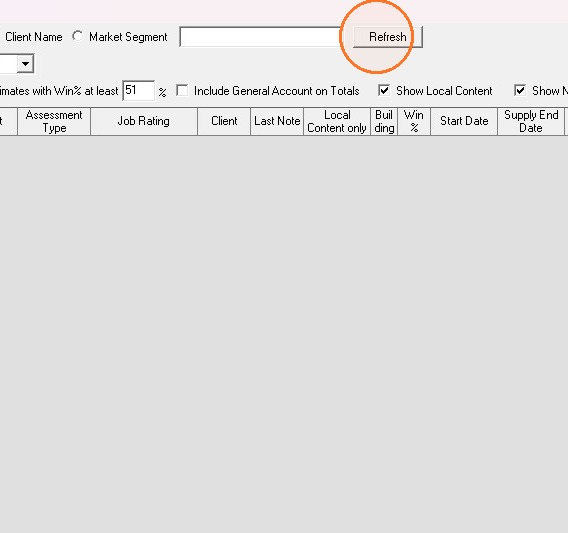
Note: Each time you change a filter, click Refresh again to update the results.
Review and plan an estimate
-
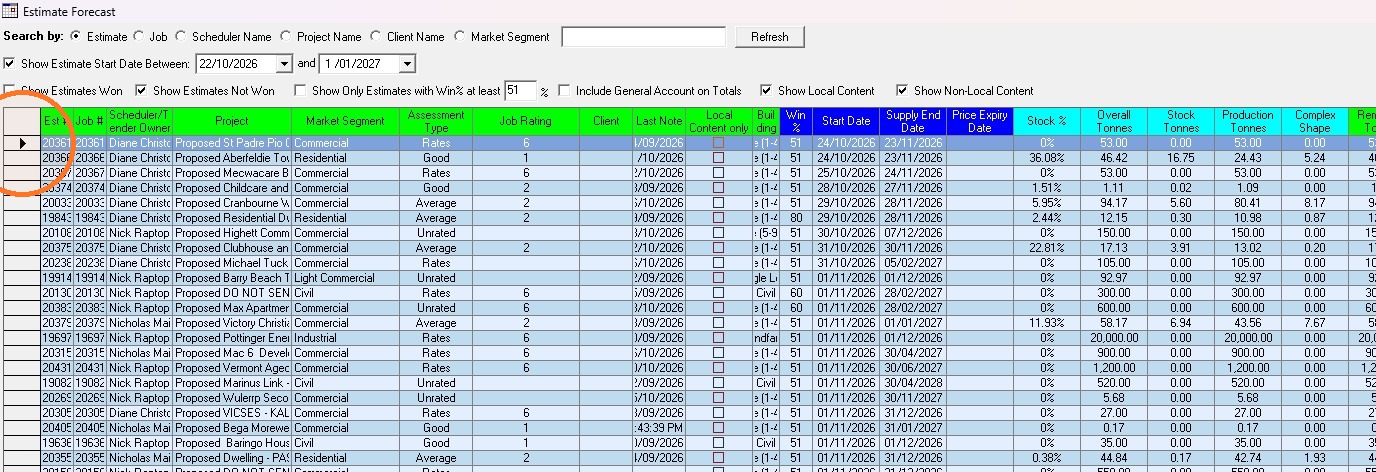
Double-click an estimate row to open its planning breakdown.
-
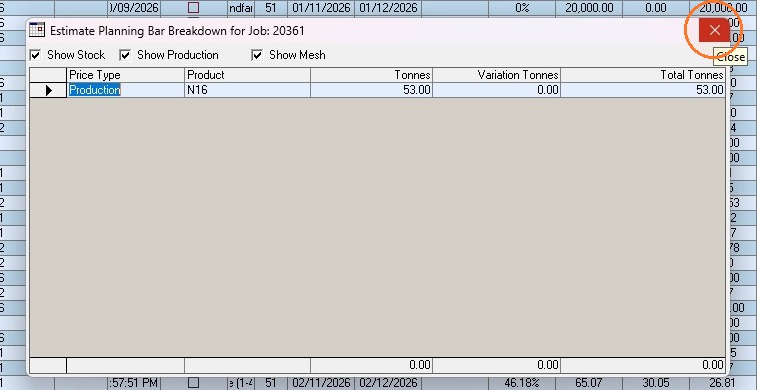
When you have finished reviewing, close the estimate planning breakdown.
-
Right-click the estimate to open the context menu.
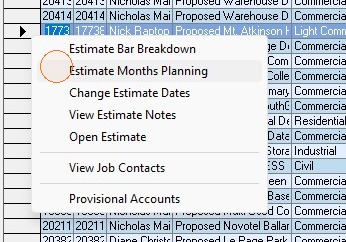
- Open the estimate months planning window. This is where you spread the estimate's value across the months you expect the work to happen.
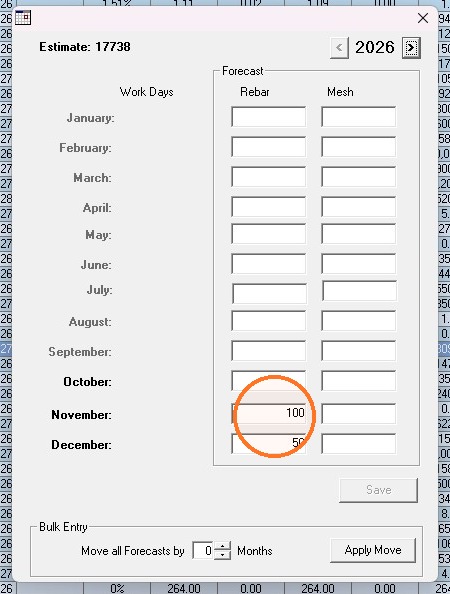
-
When prompted, confirm that you want to save the forecast totals.
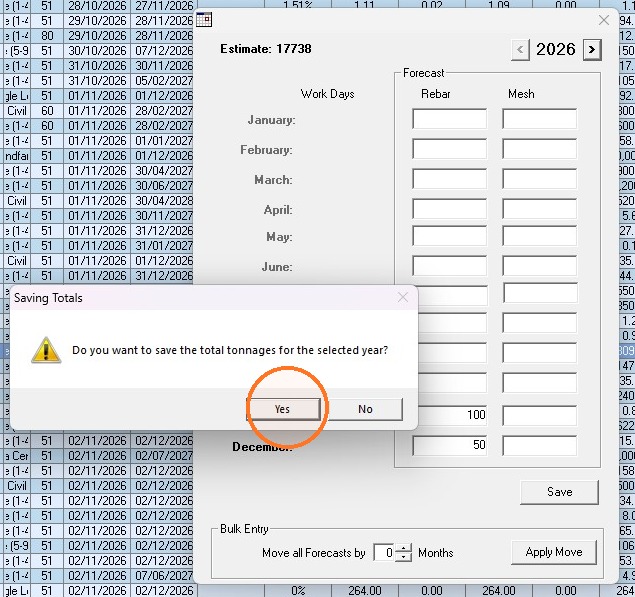
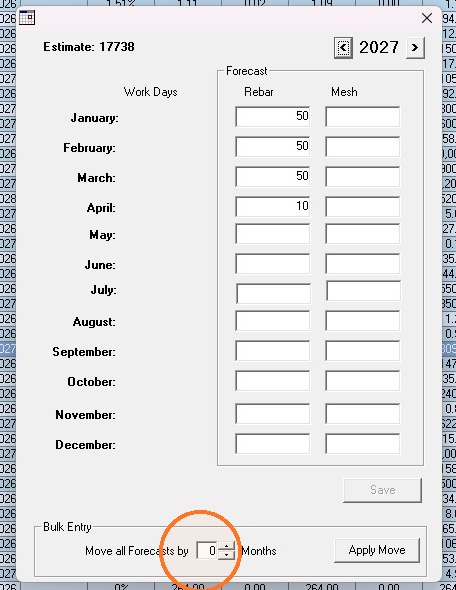
- To update several months at once, use the bulk entry tools:
- Select the bulk entry value field and nominate how many months you would like to push the job forward.
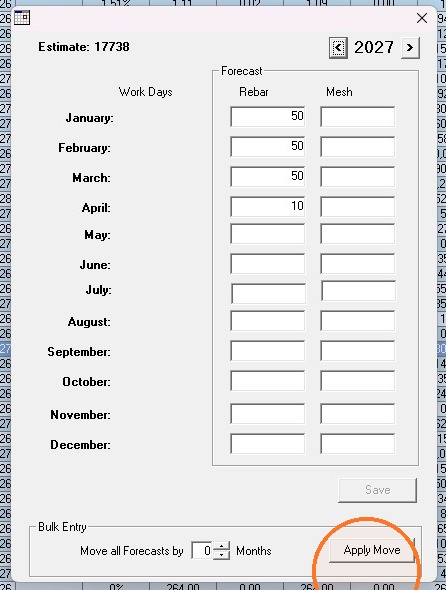
- Select Apply Move.
- Select the bulk entry value field and nominate how many months you would like to push the job forward.
View the planning charts
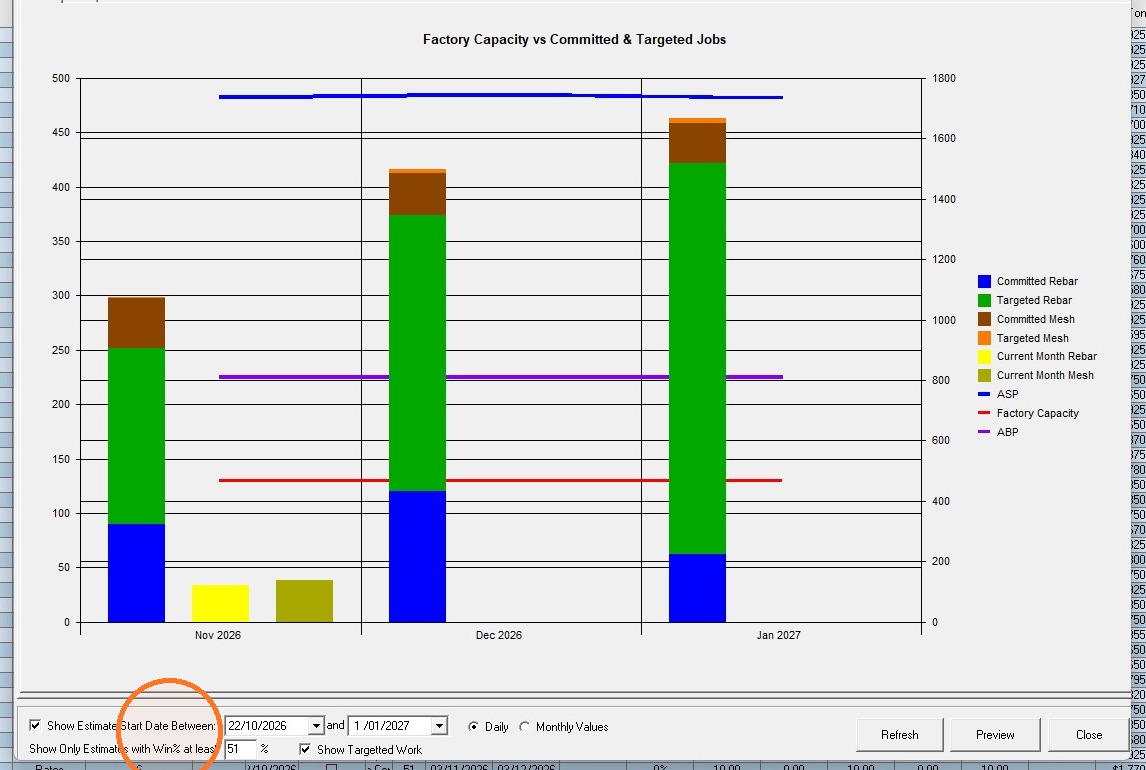
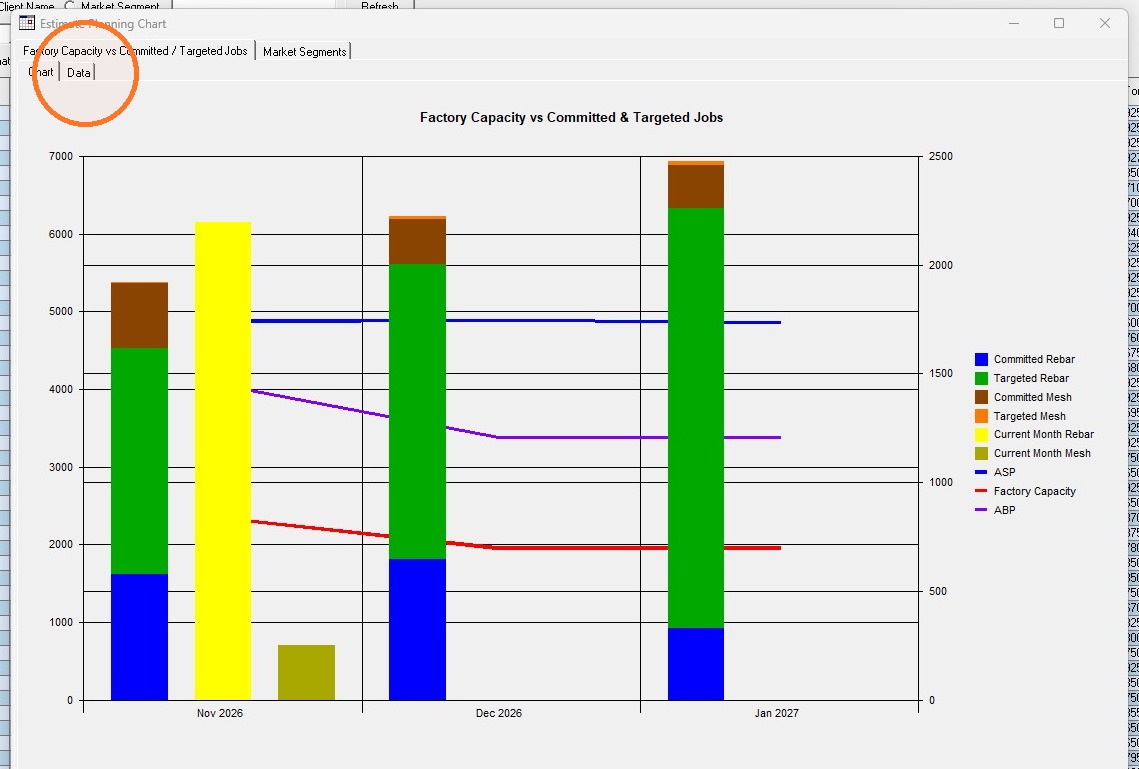
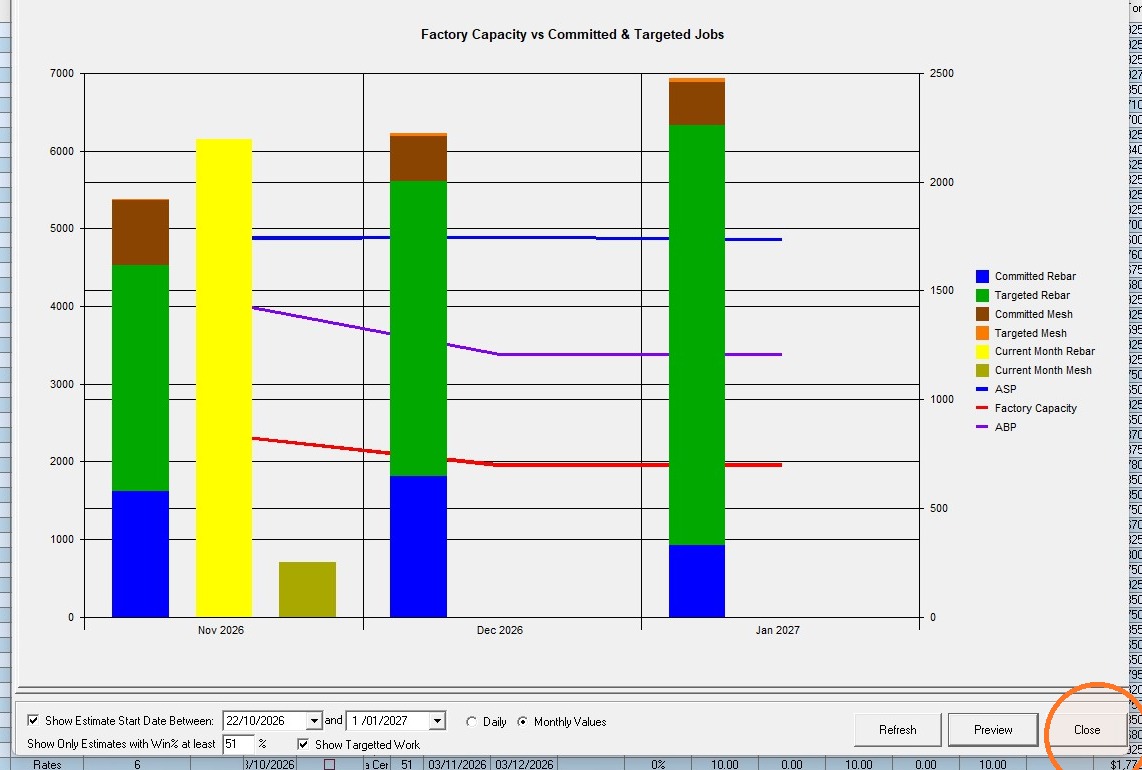
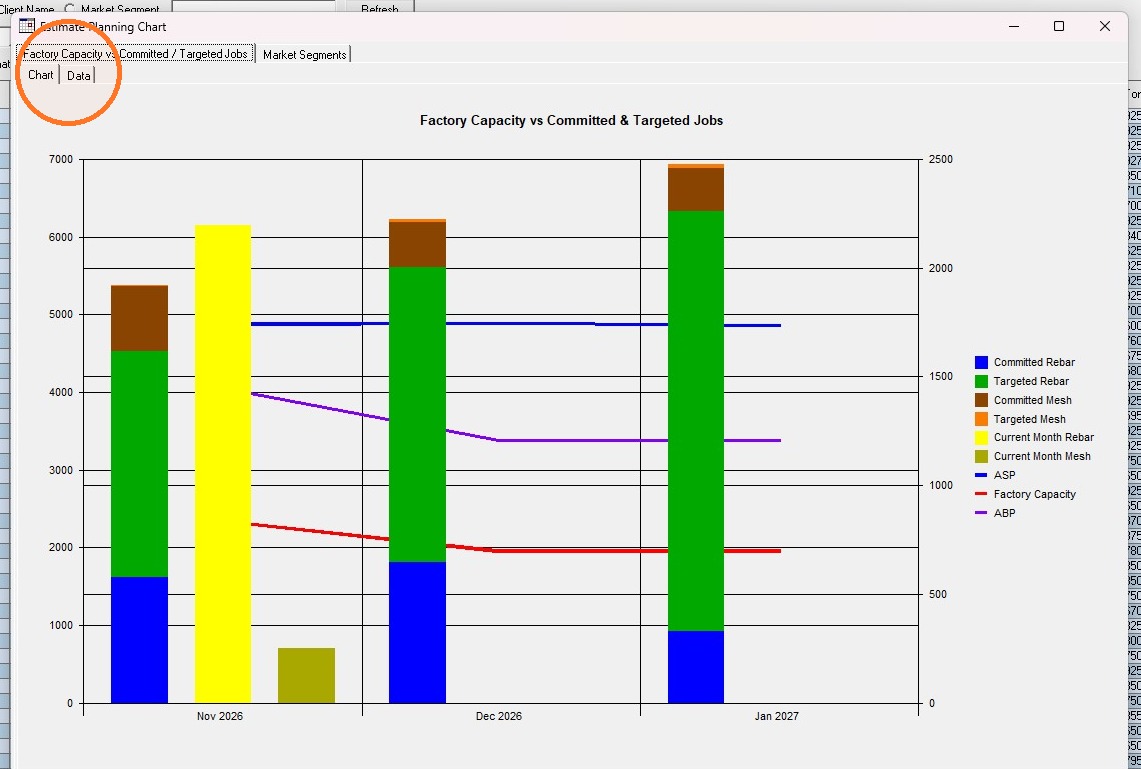
The planning charts show your forecast estimates alongside factory capacity, so you can see where planned work may exceed what the factory can produce.
- Open the chart view.
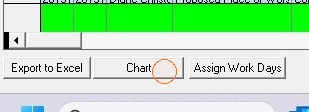
- Enable the estimate start date filter.
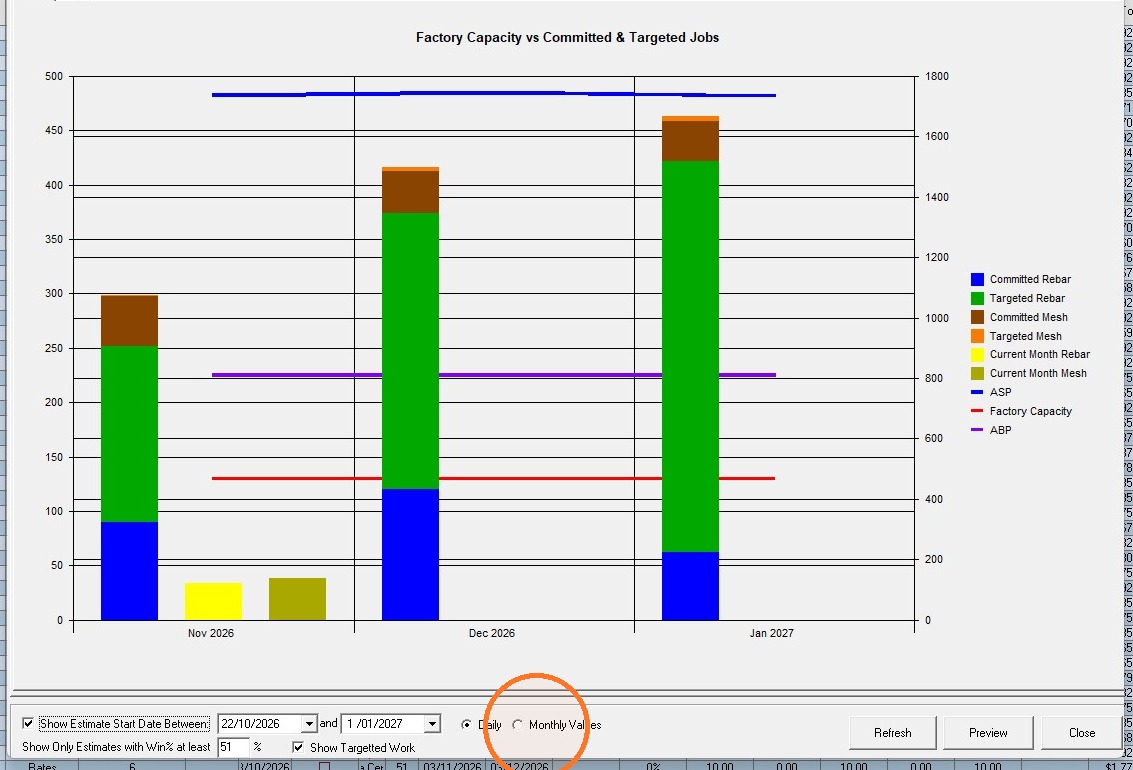
- Select Monthly Values.
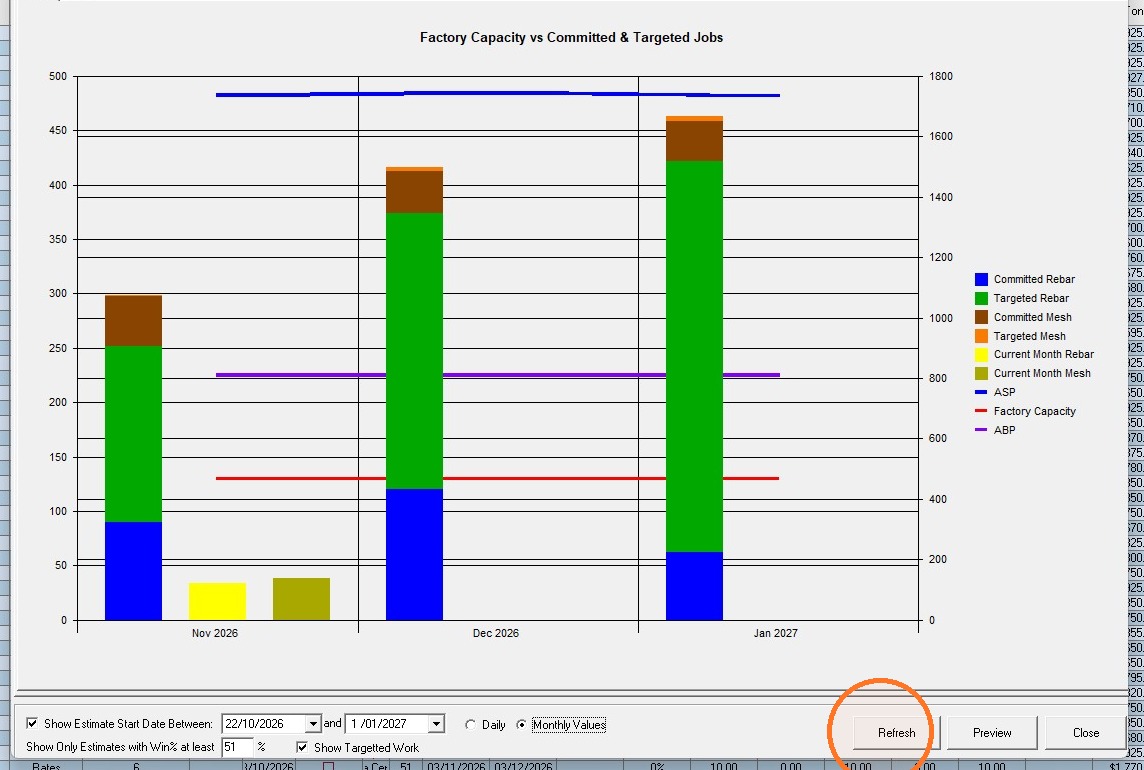
- Refresh the planning graph.
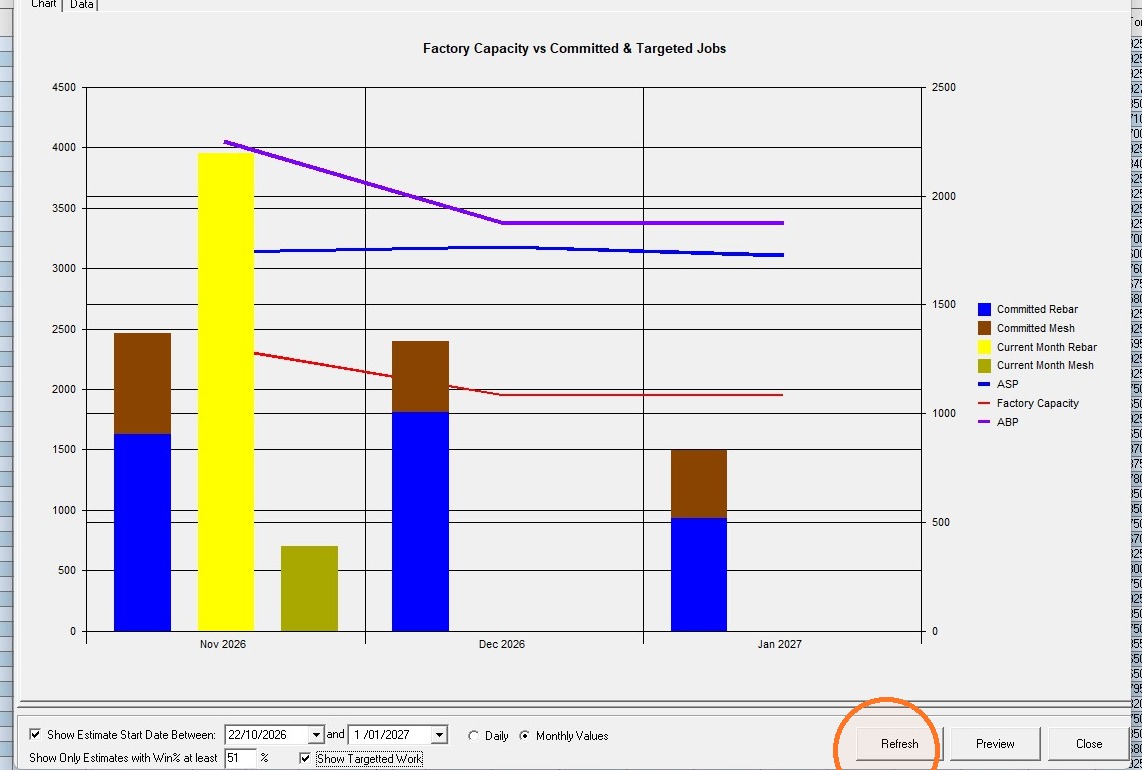
- To hide targeted work from the graph, untick Show Targeted Work.
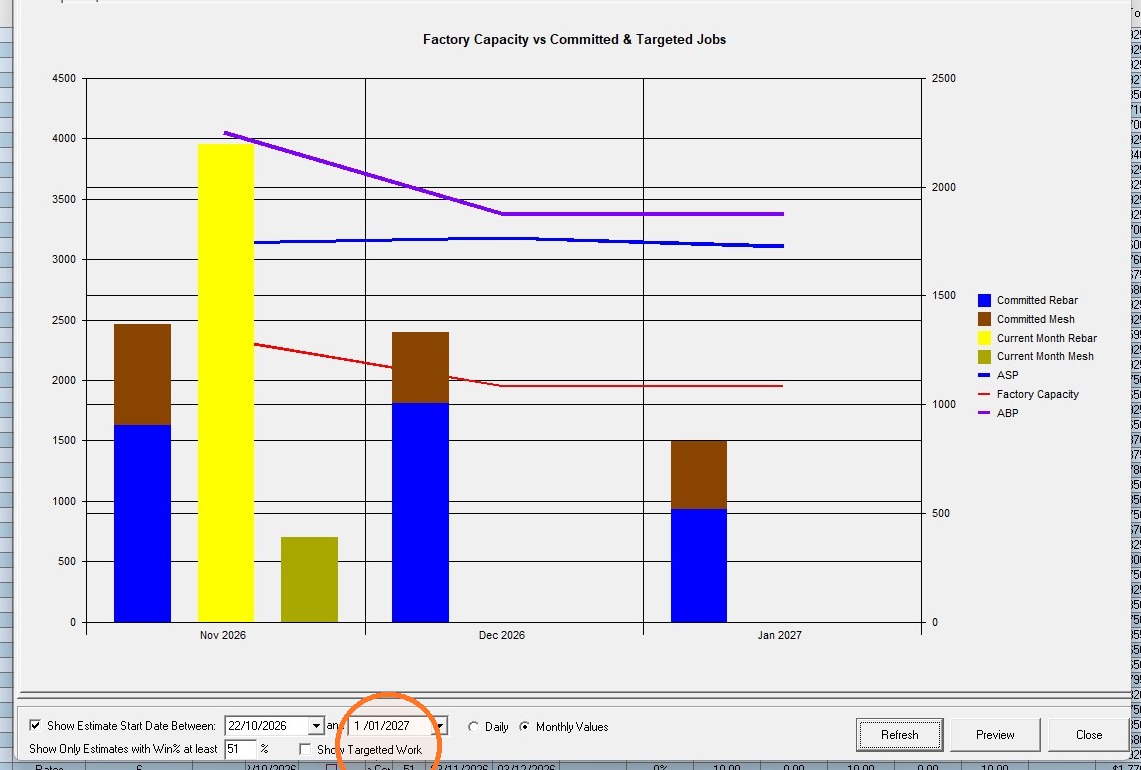
- Refresh the planning graph again to apply the change.
- Open the planning chart.
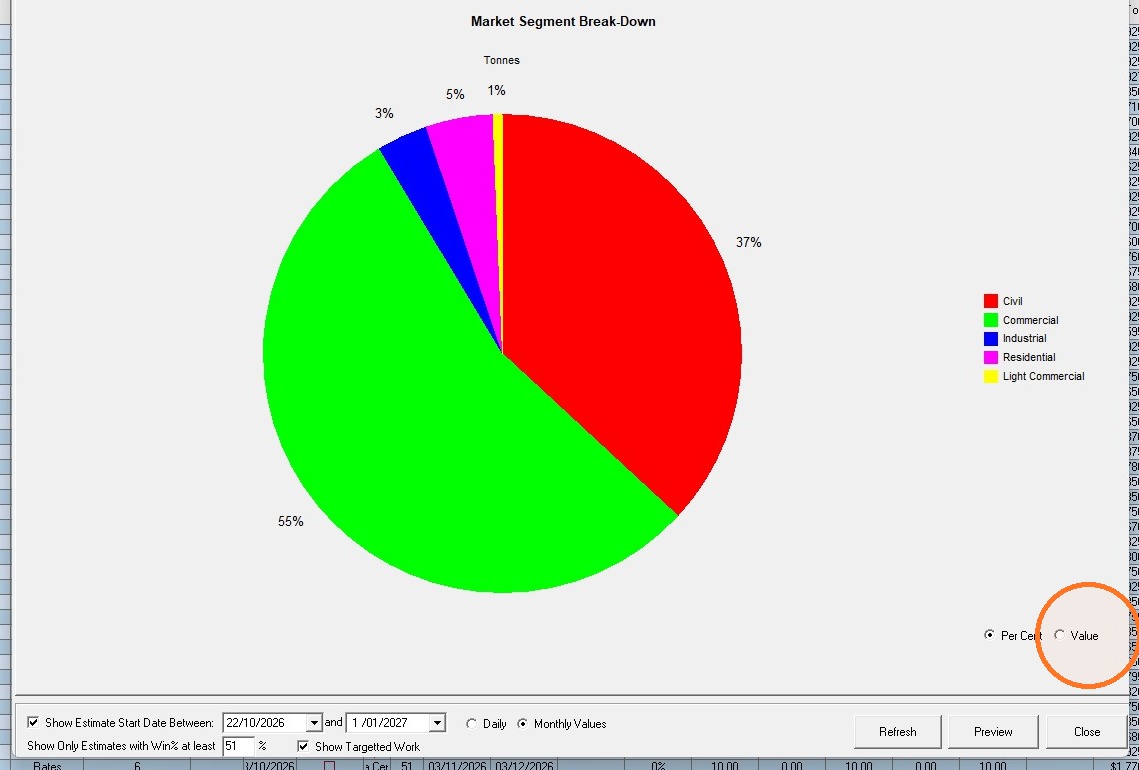
- Select the Value display option to show the chart in dollar values.
- Return to the factory capacity chart.
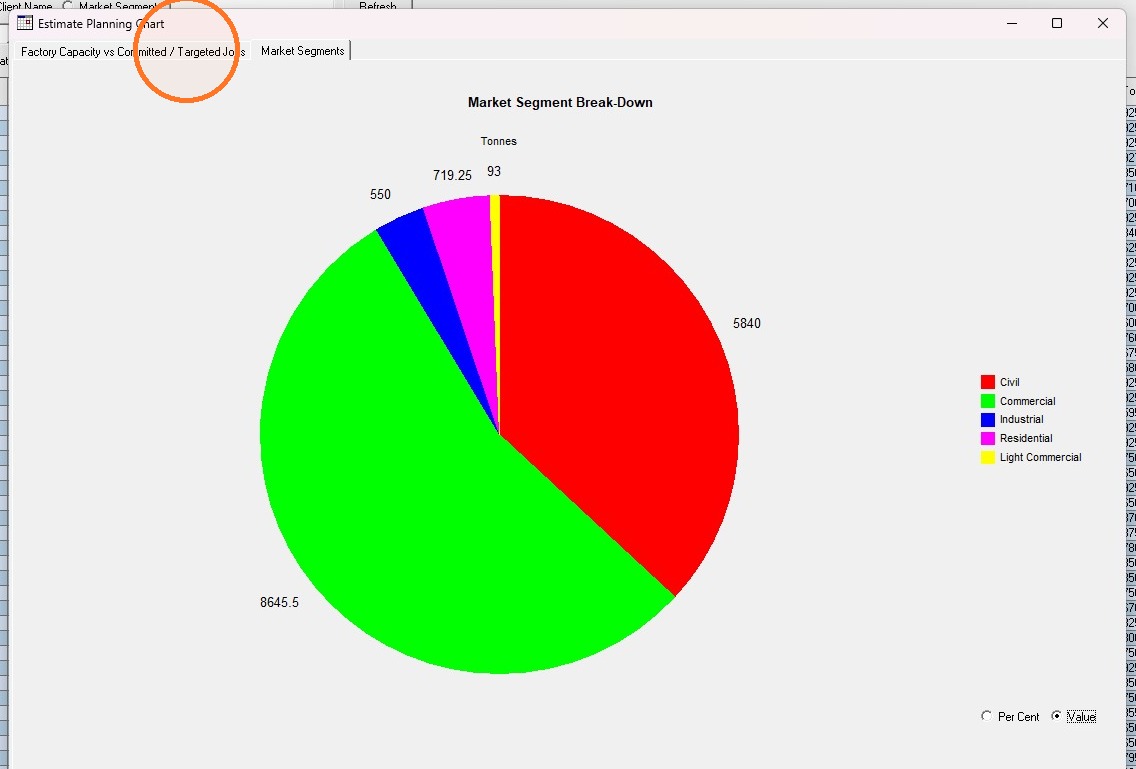
- Close the planning graph.
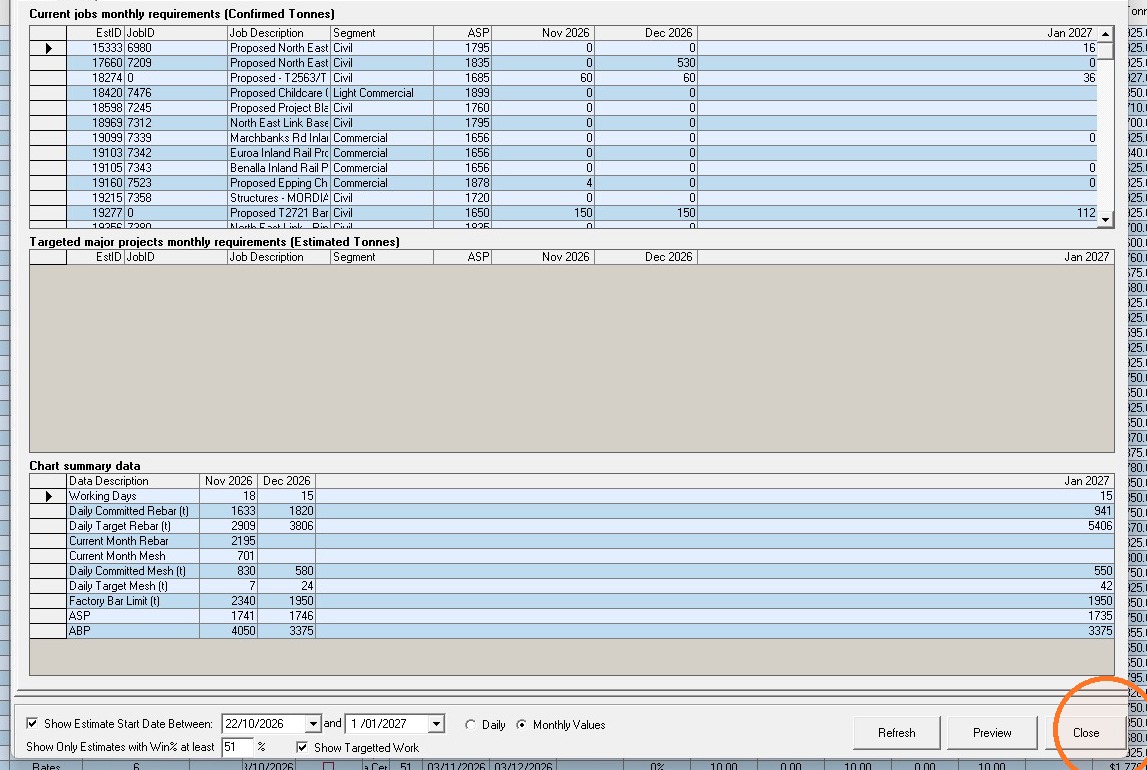
- To see the figures behind the chart, open the planning chart details.
- Close the chart details when you're done.
Assign work days
-
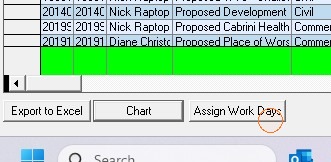
Open Assign Work Days to set which days the factory is available to work.
-
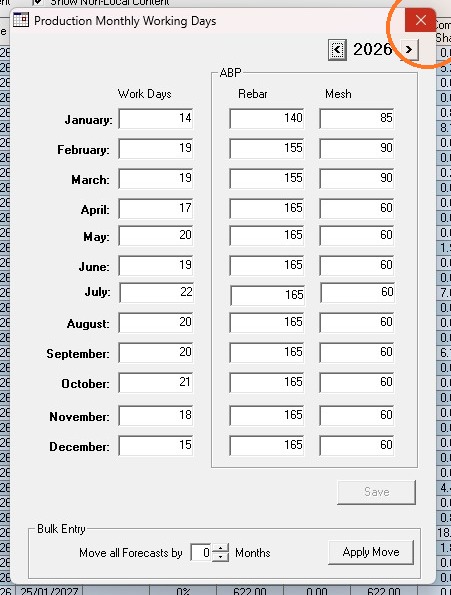
Close the work days window.
-
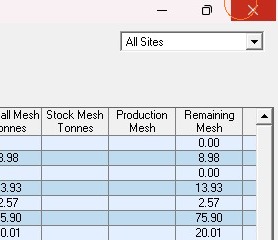
Restore the application window by clicking the red cross in the top right hand corner.
Comments (0 comments)